
Table of contents:
- Purpose of the Pages section
- The Pages screen
- How do I add and/or configure a page in a menu?
- How do I modify an existing menu page?
1. Purpose of the Pages section
The Pages section (Creation app) contains all the pages of the various menus in your environment.

As a reminder, a menu is made up of menu items (and sub-menu items) and each of these menu items corresponds to a page in which you can add as many widgets as you want in order to configure your tables, graphics, etc.
From this screen, you can add new pages to your existing menus and configure widgets or modify the configuration of these widgets on your existing pages.

2. The Pages screen
This is what you see on the Pages section screen:

- Toolbar

  |
This button is used to add a page to a Desktop or a Mobile menu |
 |
This search field allows you to search on the name of the page |
 |
Origin selector displaying the levels at which menus are created |
 |
This button allows you to display only Desktop or Mobile menu pages |
- Columns and possible actions

 |
The icon in the first column is used to expand the page details, which then appear in the Name column. |
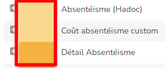  |
The second column uses the colour of the origin selector level |
| Name | This column shows the name of the page and the details when these are displayed. |
| Description | This column shows the user who created the page and the creation date. |
| Origin | This column shows the level at which the page was created. |
| Type | This column shows the type of page:
|
| Published | This column indicates whether the page is in a published menu or not. |
| Usage | This column indicates how many menus this page is used in. |
 |
These icons indicate whether the page is being edited  or published  |
 |
This icon allows you to delete the page. |
3. How do I add and/or configure a page in a menu?
 More information about how to add a page to a menu? Click here
(Point 12a of the article)
4. How do I modify an existing menu page?
More information about how to link a page to a menu? Click here
(Point 12b of the article)
